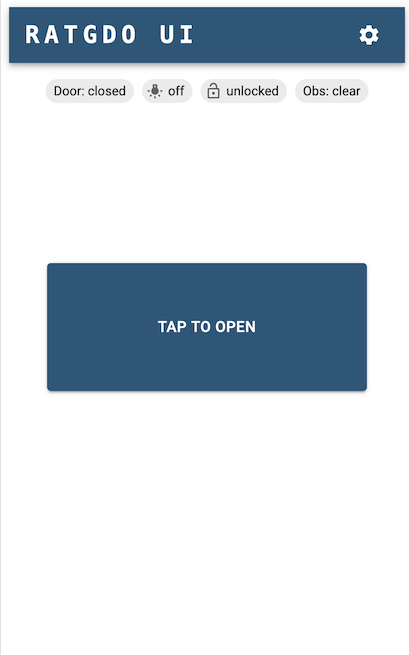
I have created a web app based on React, Material UI and mqtt.js to communicate with RATGDO via MQTT.
It's available to download and run as a Docker container - docker pull ghcr.io/kidproquo/ratgdo-ui:v1.0
Setup
Run the Docker container - docker run -d -p 5175:80 --restart=unless-stopped --name ratgdo-ui ghcr.io/kidproquo/ratgdo-ui:v1.0
The IP addresses and ports below are only for reference. Those are specific to my setup. Adapt them to suit your setup. I have the docker container's HTTP port mappped to 5175, so the RATGDO UI will be accessible at http://192.168.1.4:5175.
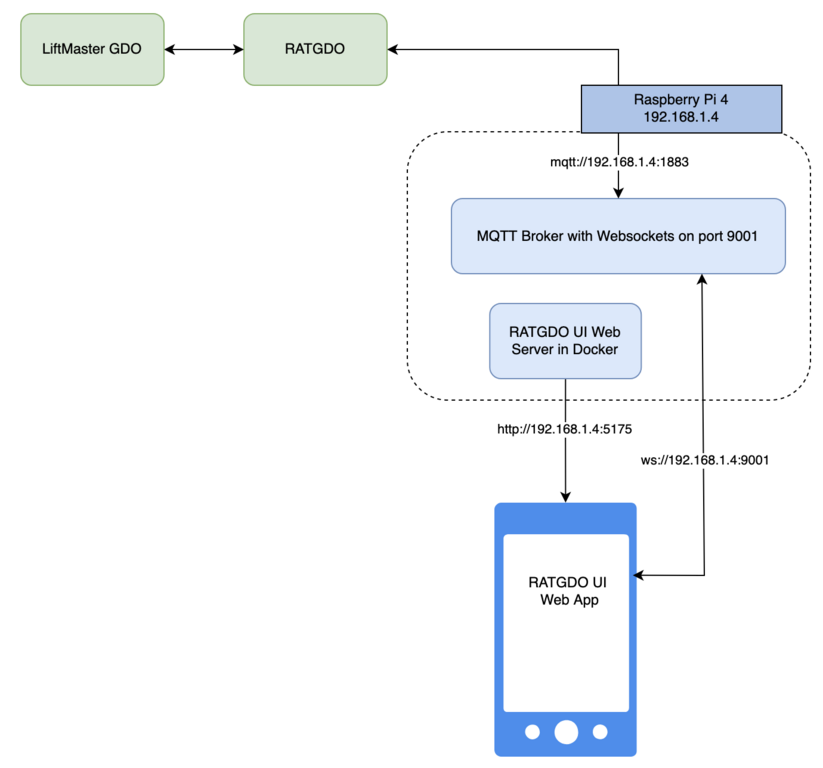
Requirements
- RATGDO wired up and running the default MQTT firmware
- RATGDO configuration set up done (MQTT broker settings, MQTT prefix and RATGDO device name)
- MQTT broker with websockets enabled
First time access to the UI will show the settings page.
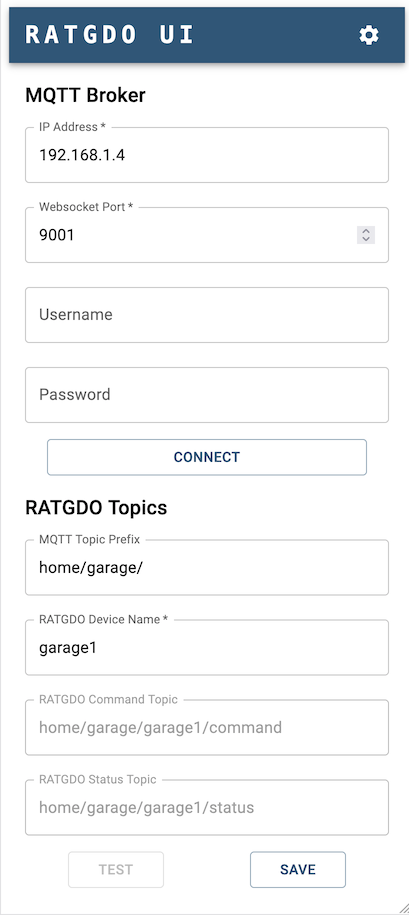
You can test connectivity and communication to the RATGDO using the Connect and Test buttons. Tap Save to store the configuration in the browser's data cache (LocalStorage). Subsequent access of the UI should load the settings from the cache.
Tap on the RATGDO UI banner to go to the home screen